Using the Dashboard
Everything on this page works without configuration, also on a read-only dashboard.
Search
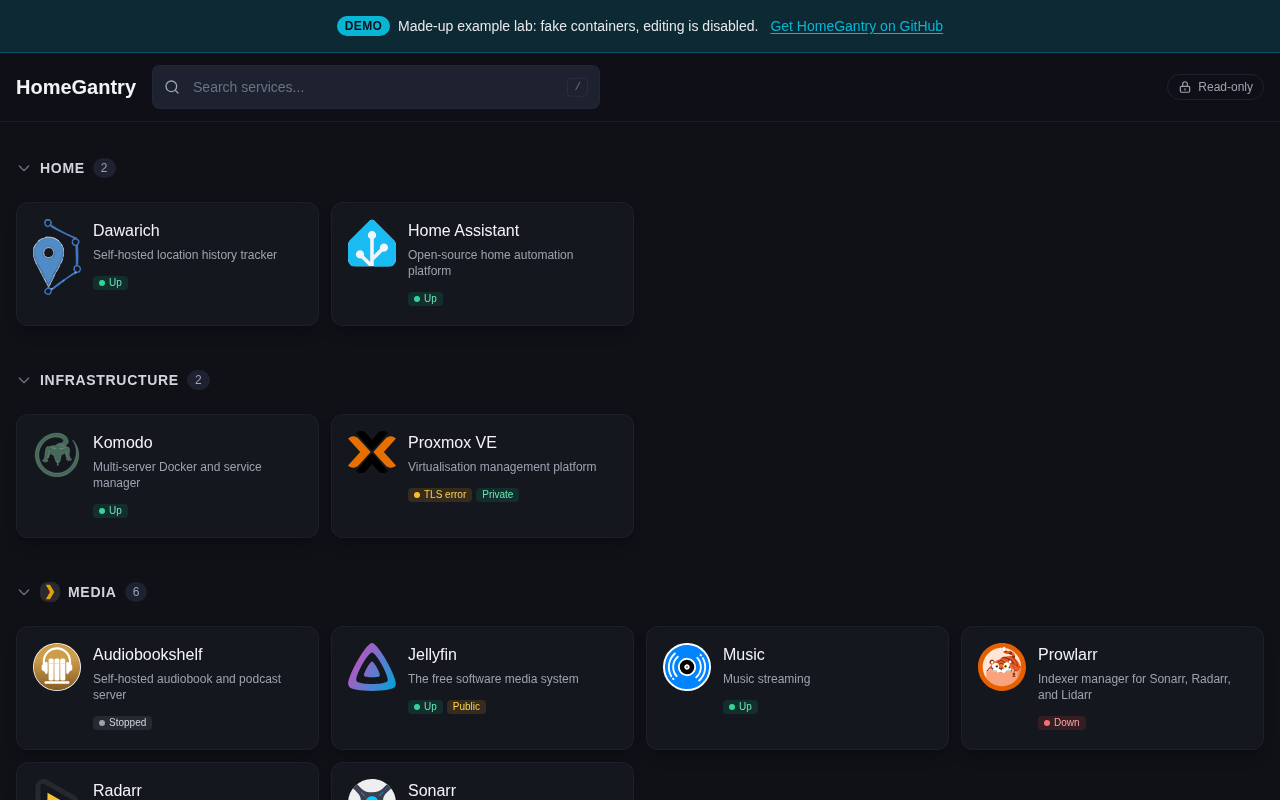
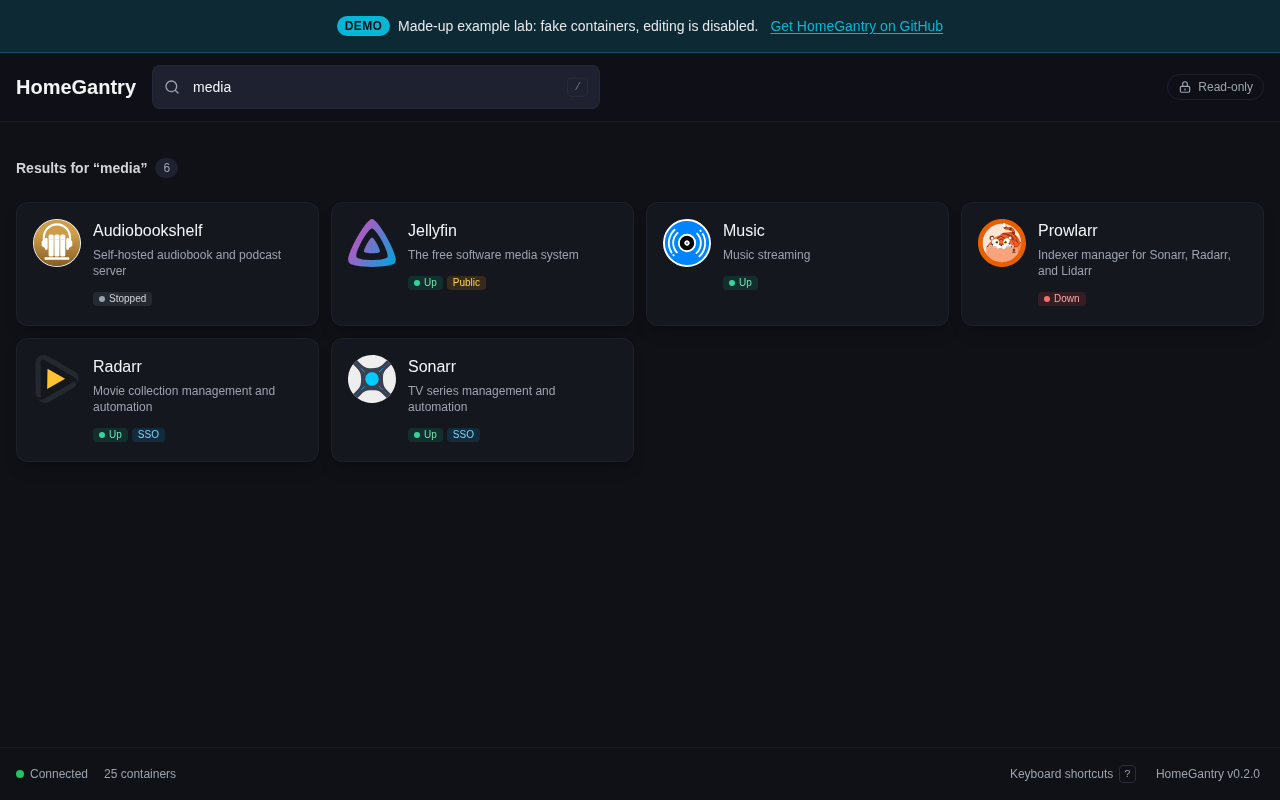
Type in the search box at the top, or press / from anywhere on the page to jump into it.
- Search looks at the name, description, category, stack and URL host (for example
nas.exampleor192.168.1.100) of each service. Case and accents are ignored:mediathequefinds "Médiathèque". - With several words, every word must match somewhere.
- Results are one list, best first: services whose name starts with the query, then services whose name contains it, then matches in other fields. Ties follow the sort order, then the name.
- Enter opens the first result in a new tab, ↓ moves to the results, Esc clears the search and leaves the box.
- The query is kept in the address bar (
?q=jellyfin), so you can bookmark a search. - Hidden services are never searched. Stopped containers are only searched while Show Stopped Containers is on; if a stopped container would have matched, the "no results" message says so.
Keyboard shortcuts
Press ? (or click Keyboard shortcuts in the footer) for this overview.
| Key | Action |
|---|---|
| / | Search |
| Esc | Clear the search, or close a dialog or the settings |
| Enter | Open the first result (in the search box) or the focused card |
| ← → | Previous / next service, in reading order across groups |
| ↑ ↓ | Service above / below in the grid |
| Home End | First / last service |
| e | Edit the focused service (only when editing is unlocked) |
| ? | Show the shortcut overview |
Shortcuts never fire while you type in a field. Tab also works as usual: the focused card has a visible ring, dialogs and the settings drawer keep focus inside until you close them, and focus returns to where you were.
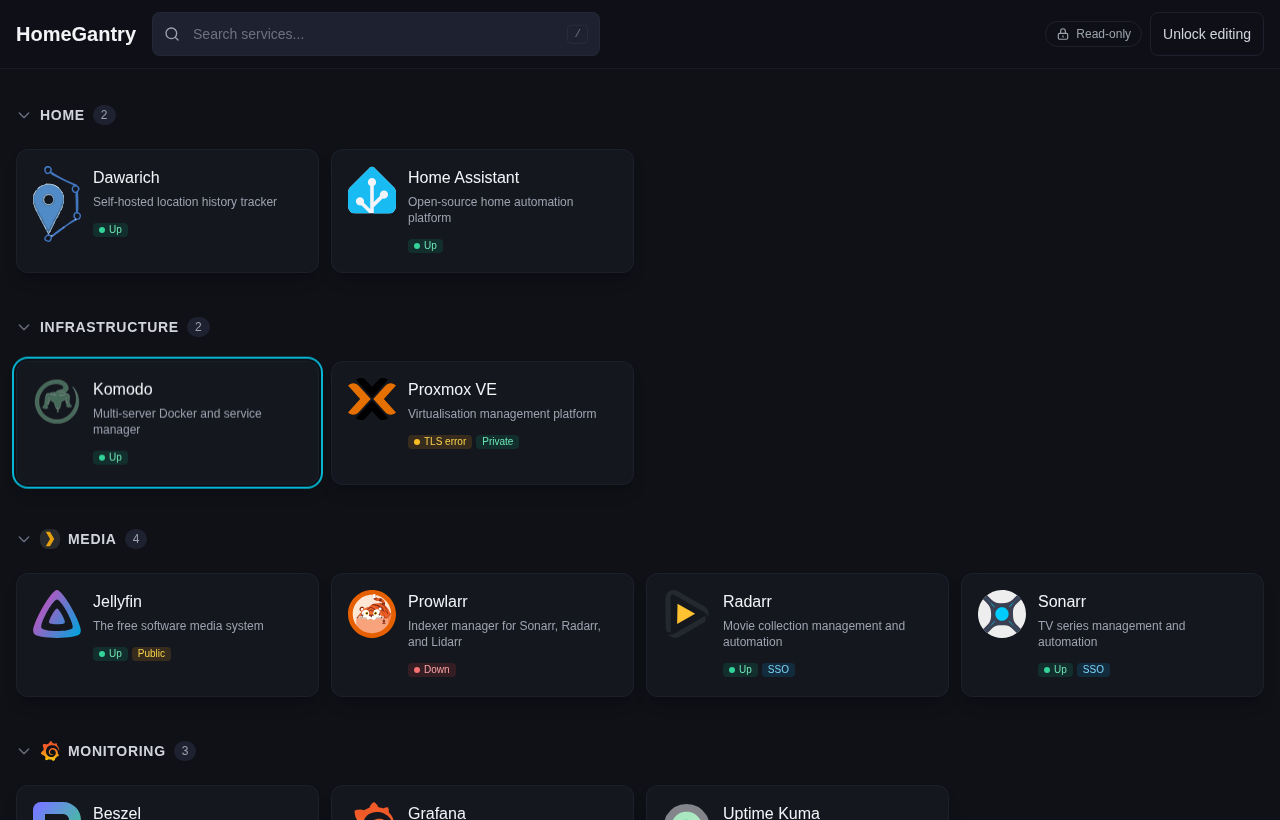
When you hide a service (the eye button on its card, or Hidden in the edit dialog), focus moves to the next card, or to the previous one if it was the last.
Editing a service
With editing unlocked, the pencil on a card (or e) opens the edit dialog. Only the fields you change are stored as an override; the rest keep following what HomeGantry detects, so a later label or Knowledge Base change still shows up. Clear a field to go back to its auto-detected value. Revert to auto-detected removes the whole override.
Grouping
Choose Group by in the settings drawer (editing must be unlocked; the choice is stored with the other dashboard settings, so every viewer sees the same grouping):
| Group by | Groups |
|---|---|
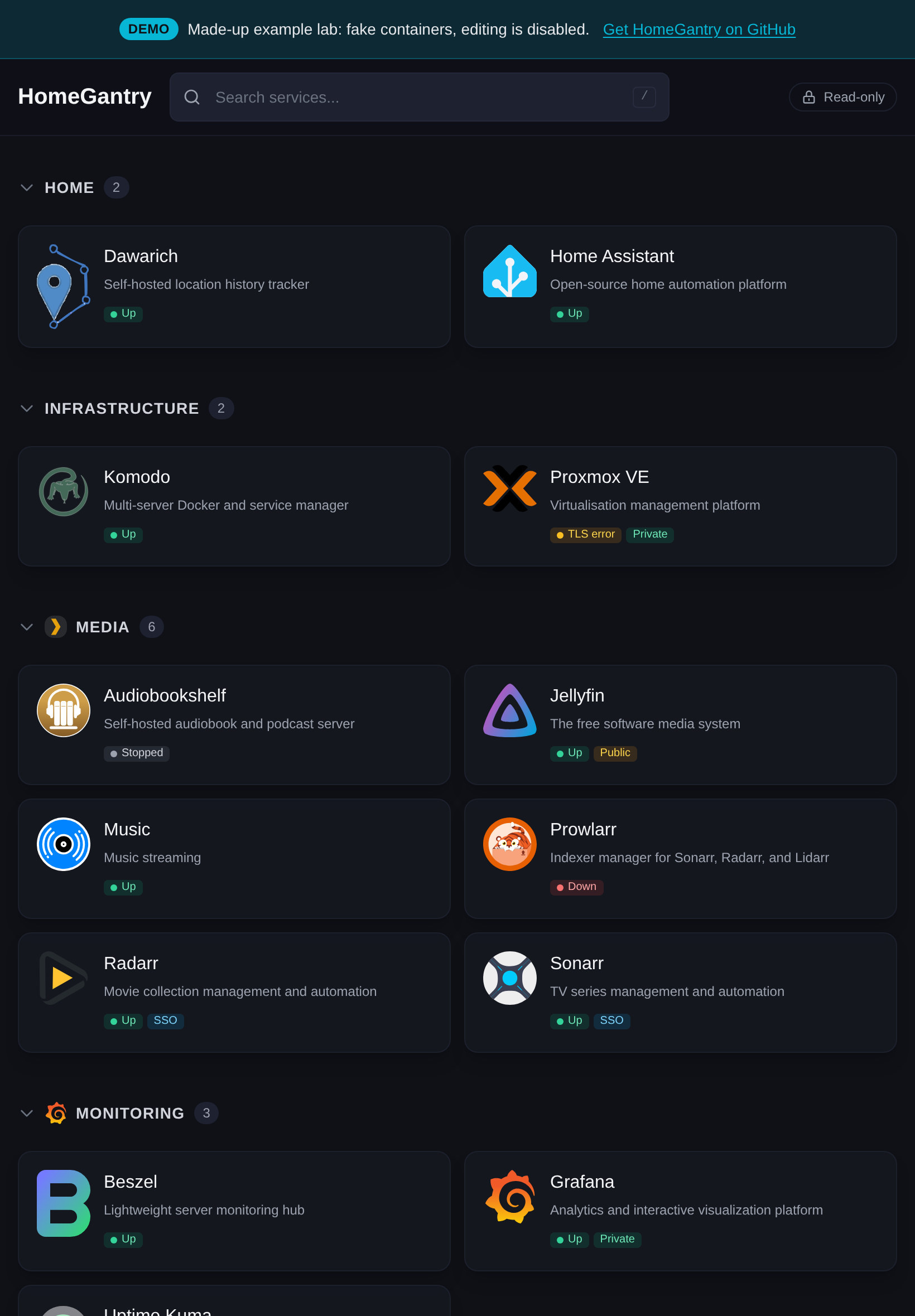
| Category (default) | The service category. Empty (the default for manual services) and Other go to Other. |
| Stack | The Docker Compose project (its display name if you set one). Services without a stack: Other. |
| Host | The host name of the service URL, without port. Services without a link: Other. |
Groups are sorted by name (numbers in numeric order, so 192.168.1.20 comes before 192.168.1.100), and Other is always last. Inside a group, services keep their sort order, then name.
Click a group heading to collapse it. Which groups are collapsed is remembered in your browser only (localStorage); it is not sent to the server and does not affect other viewers.
Status on a card
Each card shows one status:
| Status | Meaning |
|---|---|
| Up | The health check got an answer below HTTP 500 |
| Down | The health check failed. For a container the tooltip says that the container itself is running |
| TLS error | The certificate could not be verified |
| Not checked | The check gave no usable result |
| Running | The container runs, but there is no health result (checks off or not run yet) |
| Stopped | The container is not running |
Traefik and manual services without a health result show no status. The tooltip shows the details and when the service was last checked; that time is refreshed at least every 30 seconds while checks run. Show Status in the settings hides the status.
Phones and tablets
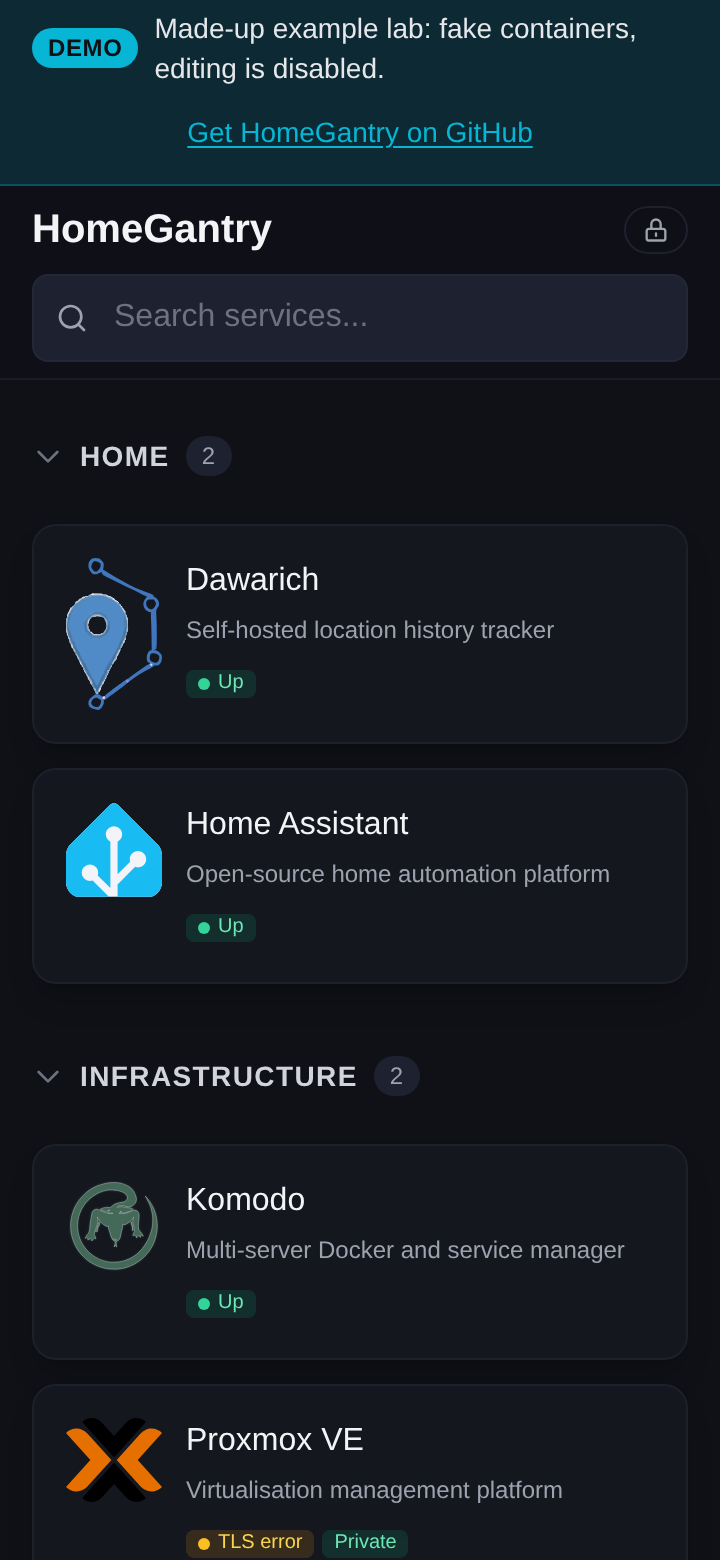
The dashboard works from 360 px wide: one column on phones, the search box on its own row, buttons and controls at least 44 px tall, and the settings and dialogs full-screen. Text fields use 16 px text on phones and tablets, so iOS does not zoom in when you tap one. On touch screens the edit buttons of a card are always visible (there is no hover).